
Is your laptop slowing down, freezing, or taking forever to load simple tasks? Trust me, you’re not alone. Over time, laptops get cluttered, overloaded, and tired — just like we do. The good news? You don’t need to be a tech expert to fix it. In this guide, I’ll walk you through how to speed up your laptop step-by-step, using simple language and practical tips you can do right now.
Let’s get your laptop running like new again!
1. Restart Your Laptop — The Quickest Fix Most People Forget
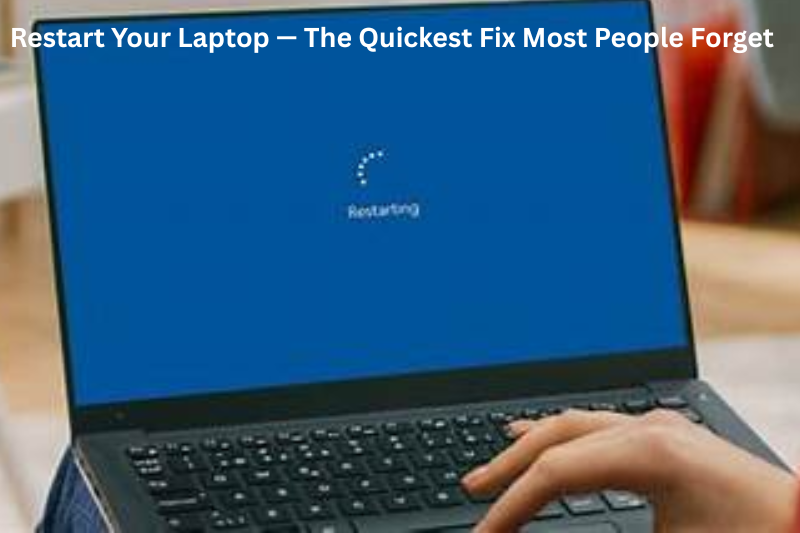
You’d be surprised how often a simple restart works like magic.
When you restart:
- Temporary files get cleared
- RAM gets freed
- Apps running in the background shut down
- System processes reset
If your laptop has been on for days or weeks, it’s definitely time for a reboot. This alone can sometimes boost performance instantly.
2. Stop Apps From Starting Automatically
Many apps think they’re important enough to start every time your laptop boots up… even when you don’t need them.
This slows down your startup time and overall performance.
How to fix it:
On Windows
- Press Ctrl + Shift + Esc to open Task Manager
- Click on Startup
- Look for apps with “High” impact
- Right-click → Disable
On Mac
- Go to System Settings
- Select General → Login Items
- Remove apps you don’t need at startup
Your laptop will start faster and feel lighter.
3. Uninstall Programs You Don’t Use
If you haven’t used an app in 6 months… you probably don’t need it.
Unused apps:
- Eat storage
- Run background processes
- Slow down system updates
- Create clutter
What to uninstall:
- Old games
- Software trials
- Duplicate apps
- Pre-installed “bloatware”
A cleaner system makes your laptop faster.
4. Free Up Hard Drive Space
Storage matters. A nearly full drive is one of the biggest reasons laptops slow down.
Your system needs free space to:
- Install updates
- Load apps
- Cache files
- Run smoothly
Aim to keep at least 15–20% free space.
Ways to clean up:
- Delete large videos you don’t need
- Clear old downloads
- Remove duplicate documents
- Empty the Recycle Bin/Trash
- Use built-in cleanup tools
- Move big files to cloud or external storage
This alone can drastically improve performance.
5. Update Your System and Drivers
I know updates can feel annoying. But outdated software can slow everything down.
Why updates matter:
- Fix bugs
- Improve speed
- Boost security
- Optimize hardware performance
Update these regularly:
- Windows or macOS
- GPU drivers
- Browser
- Essential apps
Think of it as giving your laptop fresh energy.
6. Add More RAM — A Huge Boost for Multitasking
If your laptop struggles when multiple tabs or apps are open, you might simply need more RAM.
Signs you need RAM:
- Apps freeze
- Browsers reload tabs
- Laptop becomes slow with multiple programs
- Memory usage always hits 80-100%
Adding RAM helps your laptop:
- Multitask better
- Run heavy apps
- Open more browser tabs
- Perform smoother overall
This is one of the best upgrades you can make.
7. Upgrade to an SSD
If your laptop still has a traditional HDD, upgrading to an SSD will feel like buying a brand new device.
With an SSD, your laptop will:
- Boot in seconds
- Open apps instantly
- Transfer files faster
- Feel smoother overall
This is the #1 hardware upgrade for speeding up a slow laptop.
You may also like to read these posts:
New Technology Ideas 2026: A Detailed Look at the Future Ahead
Innovative Tech Solutions Guide: A Detailed Look at Modern Technology That Solves Real Problems
Modern Tech Inventions Explained: How Technology is Shaping Our World
Future Tech Trends Updates: A Detailed Look at What a head
8. Check for Viruses and Malware
Hidden malware can drain your system resources without you realizing it.
Scan for:
- Adware
- Spyware
- Hidden background apps
- Trojan infections
Use a trusted antivirus or Windows Security to do a full scan. A clean laptop is always a faster laptop.
9. Reduce Background Apps and Processes
Your laptop might be running dozens of things you don’t see.
What to disable:
- Auto-updaters
- Cloud syncing (when not needed)
- Browser extensions
- Game launchers
- Widgets
The fewer things running, the more speed you’ll get.
10. Adjust Visual Effects for Better Performance
Fancy animations and shadows look nice, but they can slow things down.
On Windows
Search for “Adjust the appearance and performance of Windows” → Choose Adjust for best performance
On Mac
Go to: System Settings → Accessibility → Display → Reduce motion & transparency
Simple change, big difference.
11. Keep Your Laptop Cool
Overheating is one of the biggest speed killers.
Why overheating slows laptops:
Your system automatically reduces performance (throttling) to lower heat.
How to keep it cool:
- Clean dust from vents
- Use a cooling pad
- Avoid using on bed or sofa
- Keep air vents open
- Use “cooling mode” if your laptop supports it
A cool laptop is always faster and lasts longer.
12. Reset or Refresh Your System (Only if Needed)
If nothing else works, a clean system refresh can work wonders.
Windows offers:
- Reset while keeping files
- Full reset
Mac offers:
- Reinstall macOS
- Erase and reinstall
This removes deep clutter, corrupted files, and hidden junk.
Final Thoughts
Now you have a complete, beginner-friendly guide on how to speed up your laptop, with practical steps you can start applying today. You don’t need any special tools or tech knowledge — just a few minutes and patience.
FAQs
1. Why is my laptop so slow?
There are many reasons, including too many startup programs, low storage, outdated software, malware, or insufficient RAM. Even overheating can make your laptop slow down. Identifying the root cause helps you fix it efficiently.
2. Will restarting my laptop really make it faster?
Yes! Restarting clears temporary files, frees up RAM, and shuts down unnecessary background processes. If your laptop hasn’t been restarted in days or weeks, a simple reboot can give it a noticeable speed boost.
3. How much free storage do I need for a laptop to run smoothly?
Ideally, keep at least 15–20% of your total storage free. Running a laptop with almost full storage slows down the system and can cause apps to lag or crash.
4. Can adding more RAM help my laptop run faster?
Absolutely. More RAM allows your laptop to handle multiple apps and browser tabs at once without slowing down. It’s especially helpful if your laptop freezes or reloads tabs frequently.
5. Is upgrading to an SSD really worth it?
Yes, upgrading from a traditional hard drive (HDD) to a solid-state drive (SSD) is one of the most effective ways to speed up a laptop. It significantly improves boot times, file transfers, and overall responsiveness.