

In today’s world, a fast and reliable internet connection is essential for work, entertainment, and staying connected with family and friends. However, slow or unstable WiFi can be incredibly frustrating. The good news is that there are simple and effective ways to how to improve WiFi connection at home without needing to be a tech expert. From adjusting your router placement to optimizing your network settings, small changes can make a big difference in speed and reliability.
1. Start With the Basics: Choose the Best Spot for Your Router
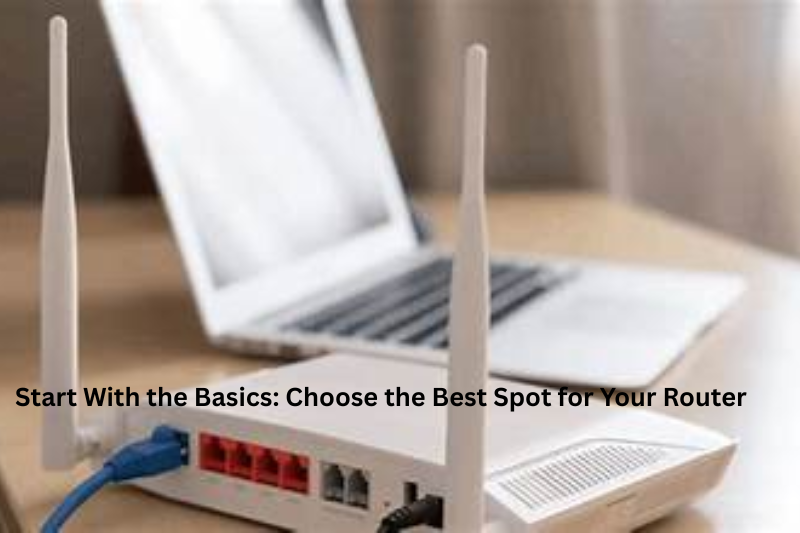
Most people hide their router behind a TV or put it in a corner because it “looks ugly.” But placement is one of the biggest factors that affect WiFi speed.
Your router sends signals like light from a bulb — the more things blocking it, the weaker your connection becomes.
To improve WiFi connection, place your router:
- In a central location
- Up high (on a shelf rather than the floor)
- Away from walls, furniture, and metal objects
- Far from household electronics like microwaves, cordless phones, and baby monitors
- In an open space, not inside a cabinet
Even moving it a few feet can improve range and signal strength more than you might expect.
2. Restart Your Router Regularly
You’ve probably heard this a million times: “Try turning it off and on again.”
But there’s a reason everyone says it — it works.
Routers build up temporary data files and minor bugs that slow them down. Restarting clears these issues and refreshes performance.
How often should you restart it?
- Once every 1–2 weeks is usually enough
- You can even buy a smart plug to automate the process
This simple habit can noticeably improve WiFi connection over time.
3. Keep Your Router Firmware Updated
Think of firmware like your router’s operating system. If it’s outdated, your WiFi might be slower, less secure, and more unstable.
Why updates matter:
- Better performance
- Stronger security
- Improved compatibility with new devices
- Bug fixes
Most routers have a section in their admin panel called “Firmware Update” or “Software Update.” A quick update can do wonders.
4. Reduce Network Congestion
Modern homes have so many devices — phones, tablets, smart TVs, cameras, game consoles, lights, speakers, doorbells — that all want WiFi at the same time.
If too many devices are active, everything slows down.
Ways to reduce overload and improve WiFi:
- Disconnect devices you’re not using
- Limit heavy activities like gaming or 4K streaming during work meetings
- Use Ethernet cables for devices that stay in one place (TVs, PCs, gaming consoles)
- Create a guest network for visitors
Less crowding equals more speed.
5. Choose the Right Band: 2.4 GHz vs 5 GHz
Most routers today offer dual-band WiFi. Knowing which one to use can instantly improve WiFi connection.
2.4 GHz
- Slower speeds
- Longer range
- More interference
- Great for devices far from the router
5 GHz
- Faster speeds
- Shorter range
- Less interference
- Perfect for laptops, phones, and TVs near the router
If you want speed, choose 5 GHz. If you want distance, choose 2.4 GHz.
6. Check for WiFi Interference
Many everyday objects weaken WiFi signals without you even realizing it.
Common signal blockers include:
- Thick walls (especially brick or concrete)
- Mirrors
- Refrigerators
- Fish tanks
- Metal furniture
- Bluetooth devices
- Baby monitors
- Microwave ovens
Try to keep the path between your device and router as obstacle-free as possible.
7. Upgrade Your Router if It’s Old
If your router is more than 4–5 years old, it might not support modern speeds.
Signs your router is outdated:
- Frequent signal drops
- You’ve upgraded your internet plan, but speeds haven’t improved
- WiFi struggles to cover your whole home
- Old WiFi standards (like WiFi 4 or WiFi 5 only)
A new router with WiFi 6 or WiFi 6E can dramatically improve WiFi connection in both speed and stability.
8. Use a WiFi Extender, Booster, or Mesh System
If you have a big house, thick walls, or rooms far from the router, you may need extra equipment to extend your WiFi coverage.
WiFi Extender
- Boosts signal to dead zones
- Good for small homes
WiFi Booster / Repeater
- Strengthens the existing WiFi
- Works well for medium homes
Mesh WiFi System
- Best for large homes
- Multiple units cover your entire house with seamless WiFi
- No need to switch networks as you move around
Mesh systems are becoming very popular because they solve nearly all coverage problems.
9. Secure Your WiFi Network
A weak password or open network can slow down your WiFi and put your data at risk.
To secure your WiFi:
- Use a strong password
- Use WPA2 or WPA3 encryption
- Change your router’s default login
- Don’t share your password widely
- Disable WPS (it’s a security risk)
A secure network performs better and protects your data.
10. Check Your Internet Plan
Sometimes the problem isn’t your WiFi — it’s your actual internet speed.
If you have:
- Multiple devices
- A streaming smart TV
- Gamers in the house
- Work-from-home meetings
…you may need a faster plan.
You may also like to read these posts:
New Technology Ideas 2026: A Detailed Look at the Future Ahead
Innovative Tech Solutions Guide: A Detailed Look at Modern Technology That Solves Real Problems
Modern Tech Inventions Explained: How Technology is Shaping Our World
Future Tech Trends Updates: A Detailed Look at What a head
Run a speed test and compare it with your plan. If it’s much lower than expected, contact your provider.
11. Replace Old Cables and Check Connectors
If your router is connected to an old or damaged cable, it can slow your entire network.
Inspect your:
- Ethernet cable
- Coaxial cable
- Power adapter
- Wall jack
Sometimes replacing a $5 cable can instantly improve WiFi connection.
12. Add WiFi QoS Settings (Quality of Service)
Many routers allow you to prioritize certain devices.
You can give higher priority to:
- Laptops during work calls
- Smart TVs during movie nights
- Gaming consoles for lag-free play
This ensures smoother performance where it matters most.
Final Thoughts
Improving your WiFi doesn’t require expensive upgrades or technical knowledge. Small adjustments — like moving your router, updating firmware, switching WiFi bands, or using a mesh system — can dramatically improve WiFi connection and make your online experience smoother and more reliable.
FAQs
1. Why is my WiFi slow even though I have a high-speed plan?
Slow WiFi isn’t always your internet plan’s fault. Factors like router placement, network congestion, interference from walls or devices, and outdated hardware can all slow down your connection. Optimizing these factors can significantly improve WiFi connection.
2. Does the location of my router really affect WiFi speed?
Yes! WiFi signals travel best in open spaces. Placing your router in a central location, away from walls, metal objects, and electronics, can improve coverage and speed throughout your home.
3. How often should I restart my router?
Restarting your router once every 1–2 weeks is usually enough to clear temporary glitches and refresh your connection. This simple step can noticeably improve WiFi performance.
4. Should I use 2.4 GHz or 5 GHz WiFi?
2.4 GHz: Slower speeds but longer range; good for devices far from the router.
5 GHz: Faster speeds but shorter range; ideal for devices close to the router.
Switching bands based on distance and device type can optimize your network and improve WiFi connection.
5. Can WiFi extenders or mesh systems really help?
Absolutely. Extenders boost signal to specific areas, while mesh systems use multiple units to cover your entire home. Both can eliminate dead zones and provide a stronger, more reliable WiFi experience.