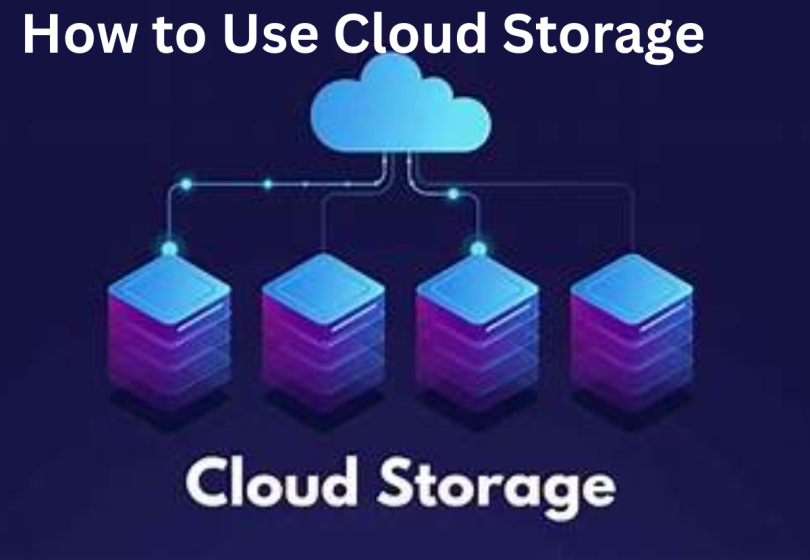

Learning how to use cloud storage can completely change the way you manage your files. By storing photos, documents, and videos online, you can free up space on your devices, access your data from anywhere, and share important files easily with friends or colleagues. Whether you are a student, professional, or just someone looking to stay organized, understanding how to use cloud storage ensures your files are safe, secure, and always within reach.
What Exactly Is Cloud Storage? (Explained in the Simplest Way)
Imagine you have a big invisible box floating somewhere on the internet. You can put your files—photos, videos, documents—inside that box. You can open the box anytime, anywhere, from any device, as long as you have internet access.
That invisible box is cloud storage.
Your files aren’t sitting on your phone or laptop anymore—they’re stored safely on powerful computers owned by companies like Google, Apple, Microsoft, or Dropbox. These companies take care of all the technical stuff so you don’t have to.
Why Cloud Storage Matters (And How It Makes Your Life Easier)
Before we talk about how to use cloud storage, it’s good to understand what problems it actually solves.
1. You save a lot of space on your devices
No more “Storage Almost Full” notifications on your phone or laptop.
2. Your files stay safe even if your device is lost
If your device breaks, gets stolen, or stops working, your files are still secure in the cloud.
3. You can access everything from anywhere
At home, at work, on vacation—it doesn’t matter. Your files follow you everywhere.
4. Sharing becomes effortless
You can instantly send a link instead of sending large attachments.
5. Automatic backups give you peace of mind
Set it once, forget it, and never lose a file again.
6. You can work across multiple devices seamlessly
Start a document on your laptop, finish it on your phone—no USB drive needed.
Popular Cloud Storage Services (Choose One That Fits You)
There are many cloud platforms, but here are the most trusted and widely used ones:
| Cloud Service | Best For | Free Storage |
| Google Drive | Android users, Google users, students | 15 GB |
| iCloud | iPhone, iPad, and Mac users | 5 GB |
| Microsoft OneDrive | Windows users, Office users | 5 GB |
| Dropbox | Simple file sharing | 2 GB |
| Mega, pCloud, Box | Privacy and encryption lovers | Varies |
Choose the one that feels natural for your device. For example, if you use an iPhone, iCloud is built in. If you use Android, Google Drive is already available. If you use Microsoft Office, OneDrive is perfect.
How to Use Cloud Storage (Complete Step-by-Step Guide)
Now let’s go through each step slowly and clearly.
Step 1: Create Your Cloud Storage Account
Most cloud services require an account. Here’s what you do:
- Google Drive → sign in with your Gmail
- OneDrive → use your Microsoft account
- iCloud → use your Apple ID
- Dropbox → register using email or Google
Once you log in, your storage space is ready to use.
Step 2: Install the Cloud App on Your Devices
To make everything easy and automatic, install the cloud app on:
- Your phone
- Your laptop
- Your tablet
You can always access your files through a web browser, but using the app makes syncing smoother and faster.
Step 3: Upload Your Files to the Cloud
This is where you start moving files from your device into your cloud space.
Uploading on Laptop / Computer:
- Open the cloud service website or desktop app
- Drag and drop files or folders into it
- Wait for the upload to finish
- Done—your files are online and safe
Uploading on Phone:
- Open the cloud app
- Tap the Upload, +, or Add button
- Choose photos, videos, or documents
- Upload them manually or enable auto-upload
You’re now using cloud storage!
Step 4: Organize Your Cloud Like a Digital Filing Cabinet
Cloud storage works best when it’s organized.
Create folders such as:
- Work
- School
- Personal
- Photos (subfolders: events, travel, family)
- Videos
- Important documents (ID scans, bills, receipts, etc.)
A well-organized cloud saves time and makes finding files easy.
Step 5: Enable Auto-Backup and Auto-Sync
This is the part that makes cloud storage truly helpful.
Auto-sync means:
Whatever you save on your device is automatically saved to the cloud.
Auto-backup means:
Your photos, videos, messages, and files get backed up automatically.
You don’t have to remember anything—the cloud does it for you.
Examples:
- Google Photos can back up all your pictures automatically
- iCloud backs up your entire iPhone
- OneDrive syncs your desktop, pictures, and documents folders
- Dropbox syncs any folder you choose
Turn this on and relax.
Step 6: Access Your Files From Anywhere
Here’s how simple it is:
- Go to the cloud website or app
- Log in
- All your files are right there
Even if you switch phones or buy a new laptop, every file is waiting for you. No need to transfer anything manually.
Step 7: Share Files with Just One Link
This is one of the most useful features of cloud storage.
To share:
- Select the file
- Tap Share
- Choose Copy link or Share via email
- Send it to anyone
They can open the file instantly—no downloading giant attachments.
Step 8: Keep Your Cloud Storage Safe and Secure
Security is extremely important. Here are simple ways to protect your files:
- Use a strong password
- Turn on two-step verification
- Don’t share your login details
- Review your shared links regularly
- Organize and delete junk files to free up space
You may also like to read these posts:
New Technology Ideas 2026: A Detailed Look at the Future Ahead
Innovative Tech Solutions Guide: A Detailed Look at Modern Technology That Solves Real Problems
Modern Tech Inventions Explained: How Technology is Shaping Our World
Future Tech Trends Updates: A Detailed Look at What a head
Advanced Tips for Using Cloud Storage Like a Pro

Once you’ve mastered the basics, you can take your cloud usage to the next level.
- Sync your entire desktop or documents folder
- Scan documents directly into cloud storage
- Collaborate in real time using Google Drive or OneDrive
- Store large video projects
- Use cloud storage as a digital vault for ID, certificates, tax documents, and medical reports
Final Thoughts
Learning how to use cloud storage is one of the best things you can do in today’s digital world. You save space, protect your files, access everything anywhere, and make your digital life simpler.
Once you get the hang of it, cloud storage becomes a powerful tool you can’t live without.
FAQs
1. What is cloud storage, really?
Cloud storage is like having an online locker where you can keep your files—photos, videos, documents, and more. You can access them from any device with internet, and your files are safely stored on powerful servers managed by cloud companies like Google, Apple, or Microsoft.
2. Is cloud storage safe?
Yes, cloud storage is generally very safe. Most services use encryption, strong passwords, and two-step verification to protect your files. However, it’s important that you also use a strong password, avoid sharing login details, and review shared links regularly.
3. Do I need the internet to use cloud storage?
You need the internet to upload, download, or sync files. Some apps offer offline access, meaning you can view files without internet, and changes will sync once you’re back online.
4. Can I access my cloud storage from multiple devices?
Absolutely! That’s one of the biggest advantages. You can access your files from phones, tablets, laptops, or even someone else’s computer by logging into your account.
5. What happens if my device is lost or broken?
Your files are safe. Since they are stored in the cloud, losing your device doesn’t mean losing your data. You can log in from a new device and retrieve all your files.